If you've booked a 15-minute advocate consultation through Lex Africa and left the reminder to memory, you already know how that ends. Confirm the session, then build the Google Calendar event in the same five minutes — Google Calendar handles the reminder, the video link, and the time zone conversion so you're not doing time-zone math at minute fourteen of a paid call.
- Add your advocate consultation to Google Calendar with Create > Event, not a generic phone reminder.
- Set the time zone explicitly to East Africa Time (UTC+3) if you're booking from outside Kenya.
- A 10-minute reminder fits a 15-minute session better than Google Calendar's default 30-minute alert.
- Paste the video call link into the event's Location field so it's one tap away, not buried in email.
Why this matters
A Lex Africa advocate consultation runs 15 minutes and is paid per session — there's no built-in buffer if you spend the first three minutes hunting for the video link or realizing your calendar saved the event an hour off. That's 20% of the session gone before the advocate says a word.
Diaspora clients have it worse. Book a session confirmed in East Africa Time while your phone defaults to US, UK or Gulf time, and Google Calendar will happily save the wrong hour unless you correct it. In 2026, that single time zone slip is still the most common reason people miss a session they scheduled correctly.
Before you start
- A Google account you're already signed into on whichever device — laptop, phone — you'll actually use to join the call.
- Your Lex Africa booking confirmation open and visible: exact date, start time, and the video link.
- The gotcha that trips up most diaspora bookings: Google Calendar defaults a new event to your device's current time zone, not the time zone you booked in. If you're scheduling a Kenya-time session from abroad, you have to set the zone manually or the event silently saves wrong.
Create the event in Google Calendar
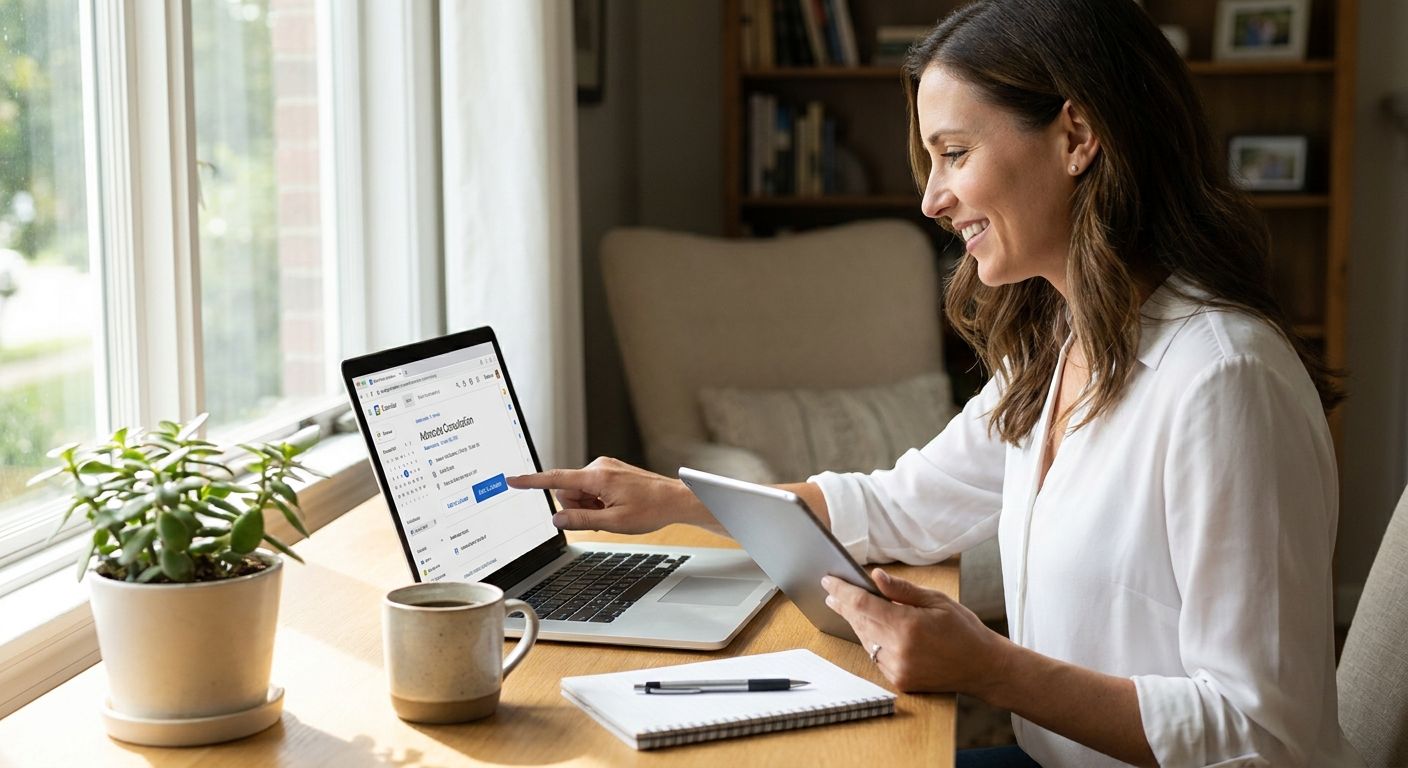
- Open Google Calendar and click Create in the top left.
- Select Event from the menu.
- In the Add title field, type something you'll recognize later — "Lex Africa advocate consultation" works fine.
- Set the Date to match your confirmed session, then set Time to the exact start time from your booking confirmation.
- Click the Time zone option under the date and time fields and select Nairobi (East Africa Time) if that's the zone your session was booked in and it doesn't match your device's default.
- Paste the video call link from your confirmation into the Location field, or the Description field if you'd rather keep Location blank — either way, the link needs to be somewhere you'll see it the moment the event opens.
- Click Save.
Expected result: the event appears on your calendar at the correct local time relative to Kenya, with the video link visible without opening a second app or email.
Set the reminder that actually matches a 15-minute session
Google Calendar's default event notification is 30 minutes before start — too early to be useful and easy to dismiss and forget.
- Inside the event you just created, click Add notification.
- Change the default 30 minutes to 10 minutes before start.
- Click Add notification again if you want a second alert at 2 minutes before — useful if you tend to be mid-task when calls start.
- Click Save to lock in the changes.
Expected result: two reminders fire close enough to the start time that you're opening the video link, not still finishing an email.
Adding the event from your phone instead of desktop
If you booked on your phone and want the event created there too, the fields are the same but the taps differ slightly.
- Open the Google Calendar app and tap the + button.
- Tap Event.
- Fill in Title, Date, and Time exactly as above.
- Tap Time zone to correct it if you're outside Kenya.
- Tap Add location or attach a link and paste the video call link.
- Tap Add notification, set it to 10 minutes before, then tap the checkmark to save.
Expected result: identical event, same reminder timing, accessible from either device without re-entering anything.
Troubleshooting
- Event saved in the wrong time zone. Open the event, tap or click the time zone field, and re-select the correct zone — Google Calendar will recalculate the display time without moving the actual appointment.
- Reminder didn't fire in time. Check your device's notification permissions for the Google Calendar app itself — a muted app-level setting overrides an in-event reminder every time.
- Video link pasted in the wrong field and you can't find it fast. Put it in both Location and Description next time; redundancy beats searching your inbox two minutes before a call.
- You booked more than one advocate consultation and can't tell which event is which. Add the legal area to the title — "Lex Africa consultation — employment" instead of a generic label.
- Calendar marks the slot as busy when you need it free for other invites. Open the event and switch the Busy/Free setting to Free if you're not worried about double-booking, though for a paid 15-minute session, leaving it as Busy is the safer default.
Customize your workflow
Once the event and reminder are set, the next decision is which advocate to book — and for that, East Africa Time and Kenyan legal practice areas both matter more than convenience. If you're comparing what a session should reasonably cost before you commit, check what advocates in Kenya typically charge in 2026 before booking rather than after.
Repeat this same setup for every session type — employment, property, family, business — since the 15-minute format and the time zone gotcha apply regardless of the legal area. If your situation is recurring (a landlord dispute with multiple check-ins, for instance), duplicate the event template rather than rebuilding it from scratch each time.
Book your advocate consultation
Connect with an LSK-verified advocate for a 15-minute video session.
FAQ
How do I add my advocate consultation to Google Calendar?
Open Google Calendar, click Create, select Event, and fill in the title, date and time from your booking confirmation. Set the time zone manually if you booked from outside Kenya, since Google Calendar defaults to your device's current zone.
What time zone should I use for a Lex Africa consultation?
Sessions are scheduled in East Africa Time (UTC+3). If you're in the diaspora, set that zone explicitly in the Google Calendar event rather than trusting your phone's automatic zone detection.
Why did my calendar event show the wrong time?
Google Calendar applies your device's current time zone to new events by default. Open the event, tap the time zone field, and select Nairobi (East Africa Time) to correct the display without moving the actual booked slot.
How long does a Lex Africa advocate consultation last?
Sessions run 15 minutes. That's short enough that a 10-minute reminder works better than Google Calendar's default 30-minute notification, which tends to get dismissed and forgotten.
Can I add the video call link directly to the calendar event?
Yes. Paste the link from your booking confirmation into either the Location field or the Description field when creating the event, so it's visible the moment the event opens.
Does Google Calendar send its own reminder for booked sessions?
Only if you create the event and set a notification yourself. Booking a session on Lex Africa doesn't automatically populate your Google Calendar — you have to add the event manually using the confirmation details.
What's the best reminder time for a 15-minute video consultation?
A 10-minute alert plus a second 2-minute alert covers most cases better than a single 30-minute notification, since a short session leaves little room to scramble once it starts.
Can I do this from my phone instead of a computer?
Yes. The Google Calendar app uses the same fields — title, date, time, time zone, location, notification — with a plus-button interface instead of a Create button on desktop.
One last thing
The single biggest failure point isn't forgetting the session — it's the time zone field defaulting silently. Set it explicitly every time, even if you're confident your phone already has it right; a 2026 iOS or Android update resetting a default zone after travel is common enough that it's worth the ten extra seconds to check.